Connect Microsoft Excel to Swydo and turn spreadsheet data into clear dashboards and client reports.
Bring custom metrics, business data, and campaign results into one reporting workflow.
Cut manual copying and focus on improving performance.
Free for 14 days
No credit card required
Cancel anytime
 2500+Customers
 80+Countries
 50,000+Monthly reports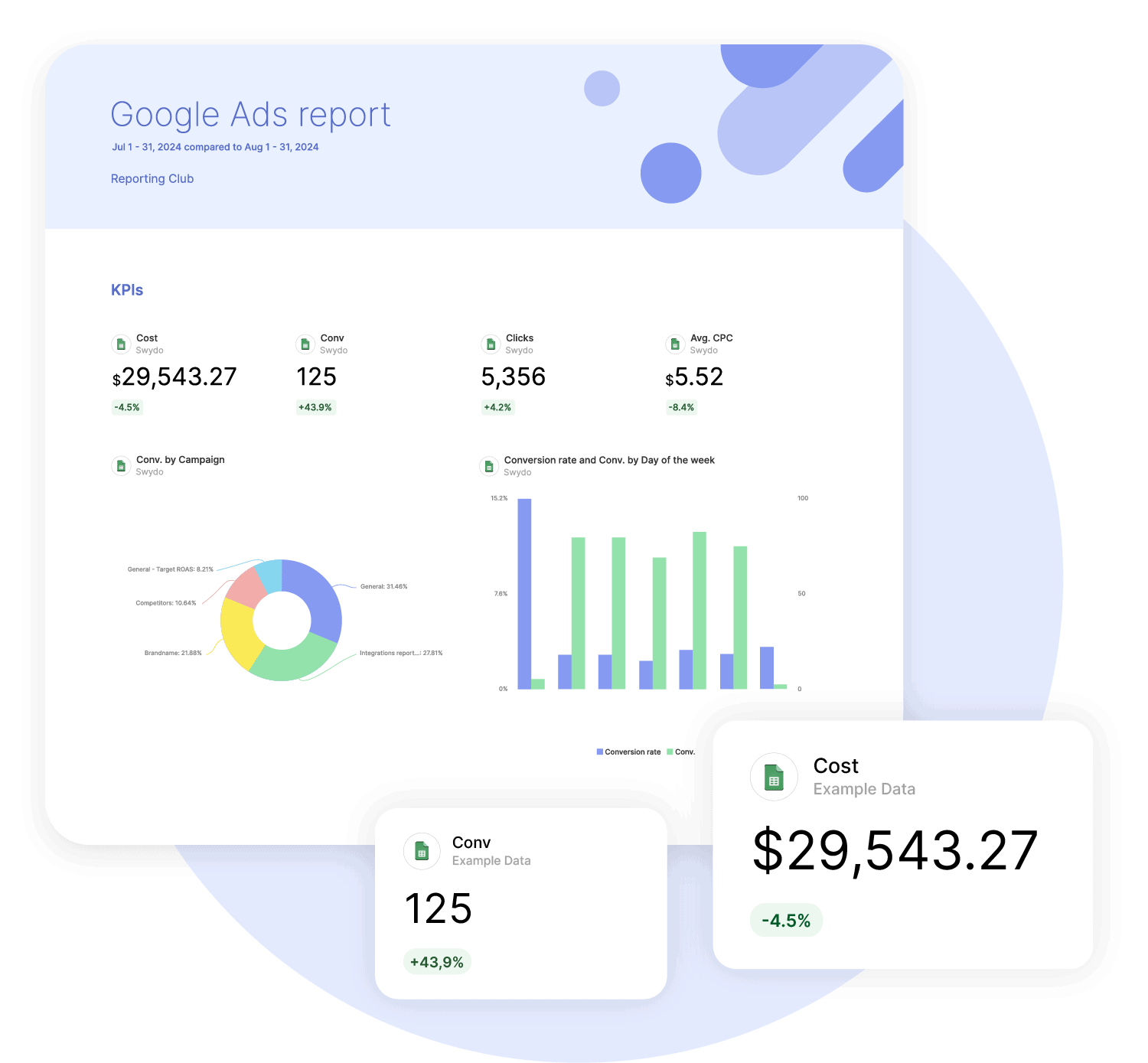
How it works

1. Select
Choose one of our predefined templates or create your own

2. Connect
Connect your data sources

3. Customize
Customize your data to meet your client’s needs

4. Share
Schedule and share a dashboard or PDF report with your team or clients
Report On Any Data
Use the fields in your workbook as the metrics and dimensions for your report.
Bring in campaign data, CRM figures, internal business metrics, or custom KPIs, including data from platforms without a native Swydo integration
Because each workbook can use a different structure, you decide which data belongs in the report and how to present it.
Build reports from your Excel dataTrack Goals & Alerts
Use Excel metrics in Swydo Custom Metrics, set targets with goal tracking, and create Alerts with Swydo’s monitoring tools.
This puts spreadsheet-based KPIs beside your other marketing data in the same reporting and monitoring workflow.
Your team can follow progress and spot results that need attention without checking every workbook value by value.
Track performance from Excel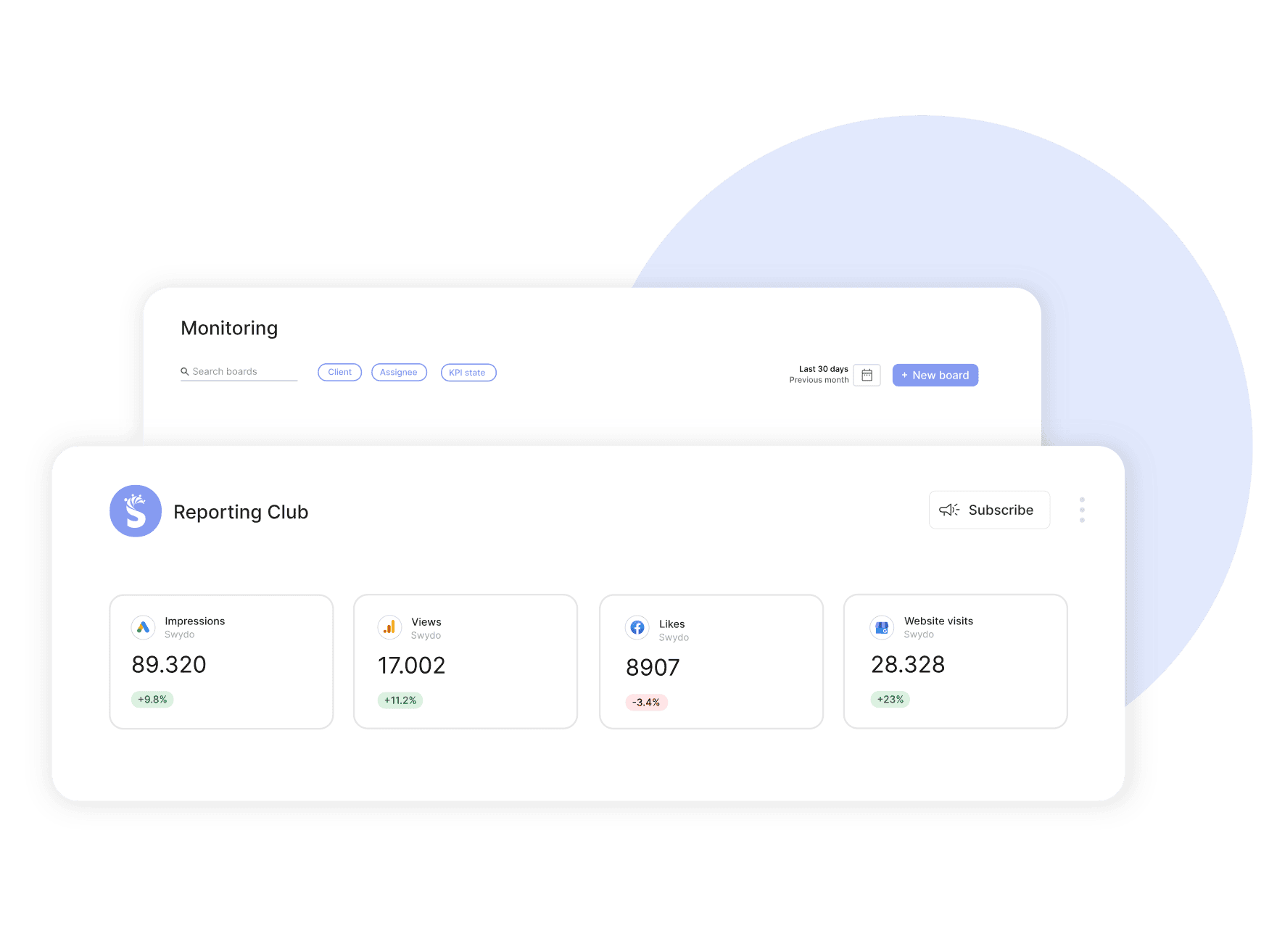
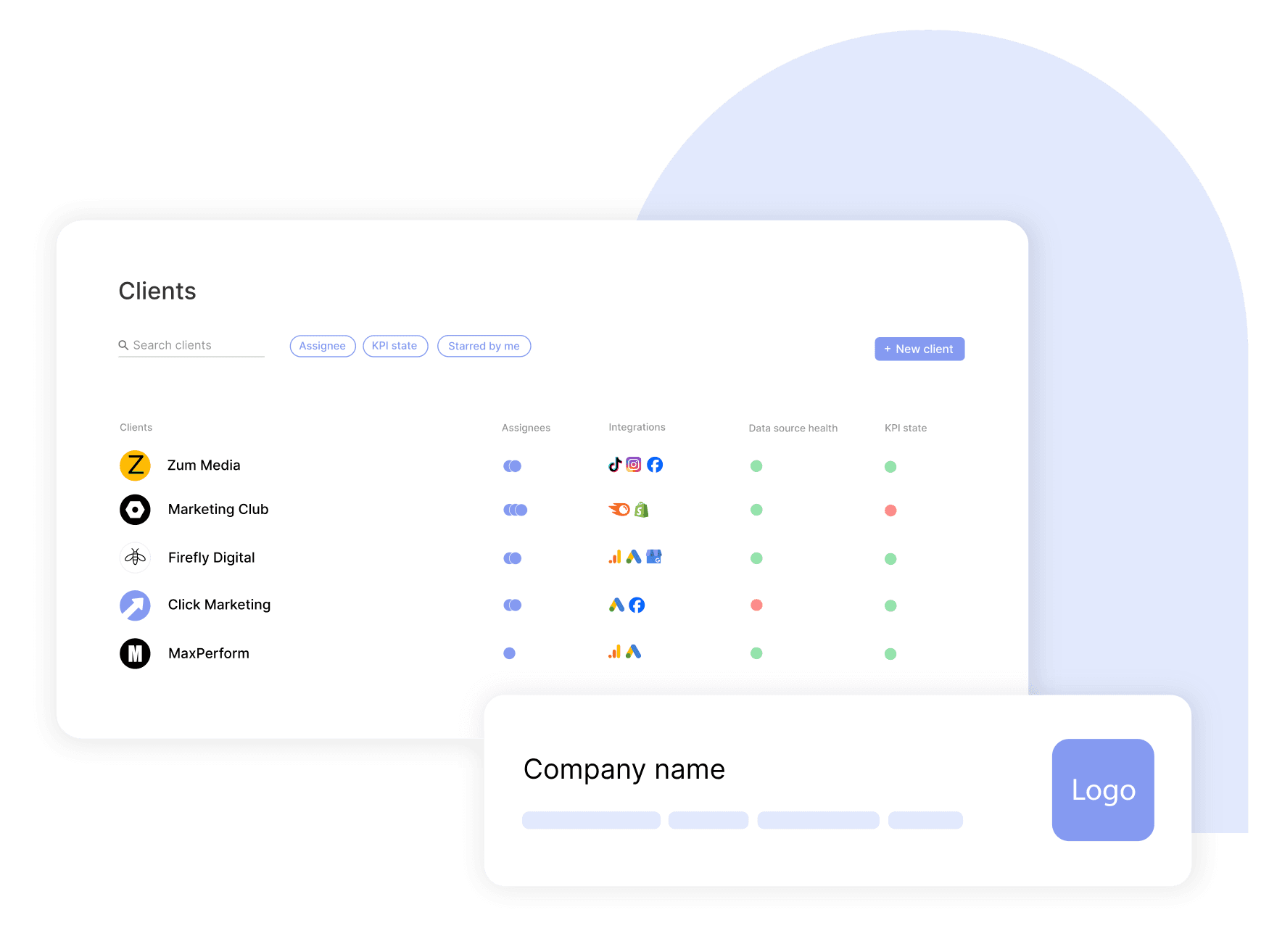
Manage Excel Reporting Across Clients
Connect an Excel workbook to each client’s Swydo report and manage spreadsheet-based reporting alongside their other marketing data.
Microsoft 365 teams can keep their source data in Excel, while agencies use one reporting workspace to organize client dashboards and reports.
Skip converting workbooks to Google Sheets or preparing a new CSV for every reporting cycle.
Manage Excel reporting across clientsBrand Every Excel Report
Present Excel data in charts, tables, and KPIs, then match each report to your brand with your logo, colors, and report layout.
Share a live dashboard or PDF that looks consistent with reports built from your other Swydo data sources.
Clients see one clear branded report, even when the underlying data comes from several platforms.
Brand every Excel report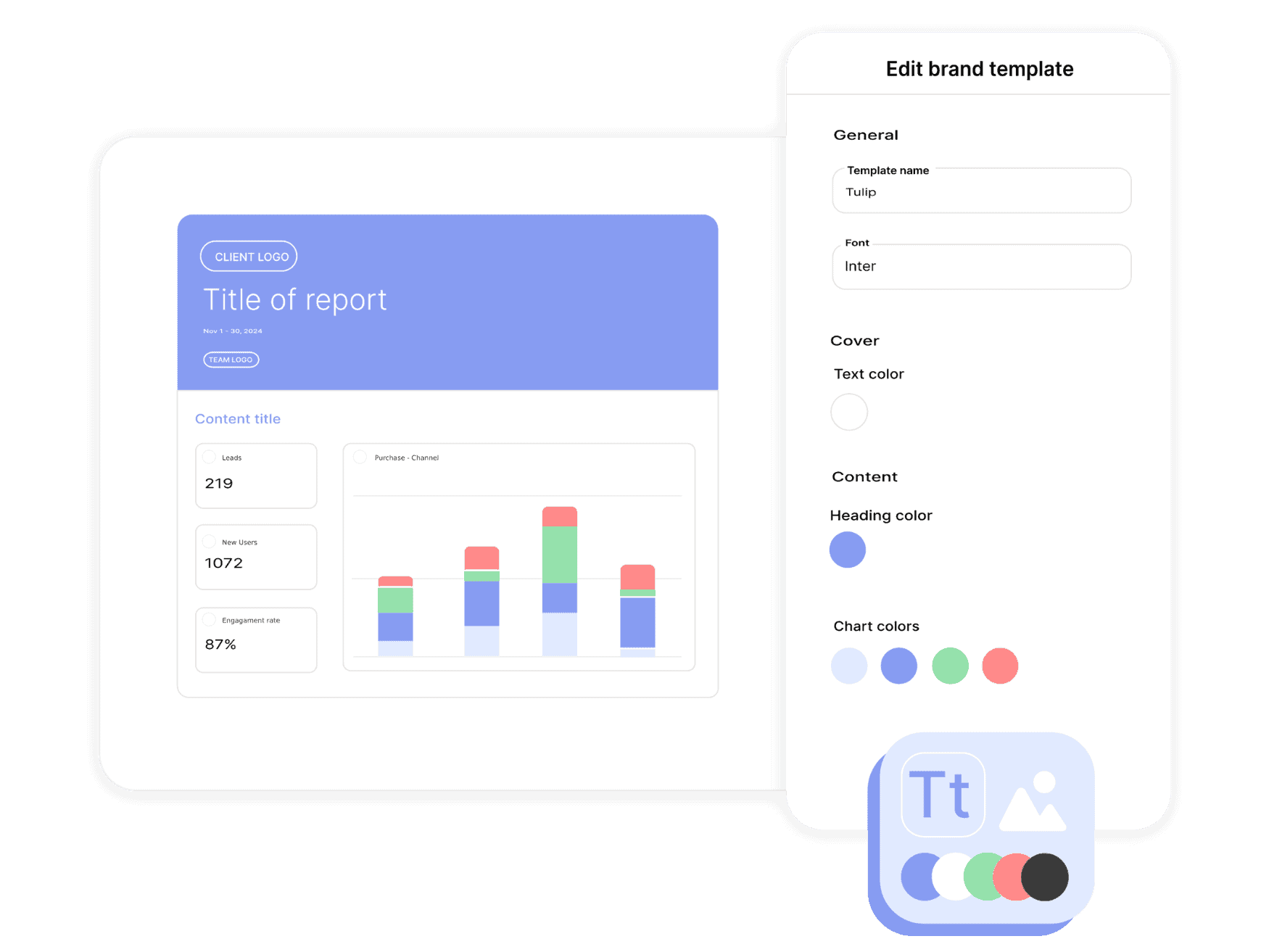
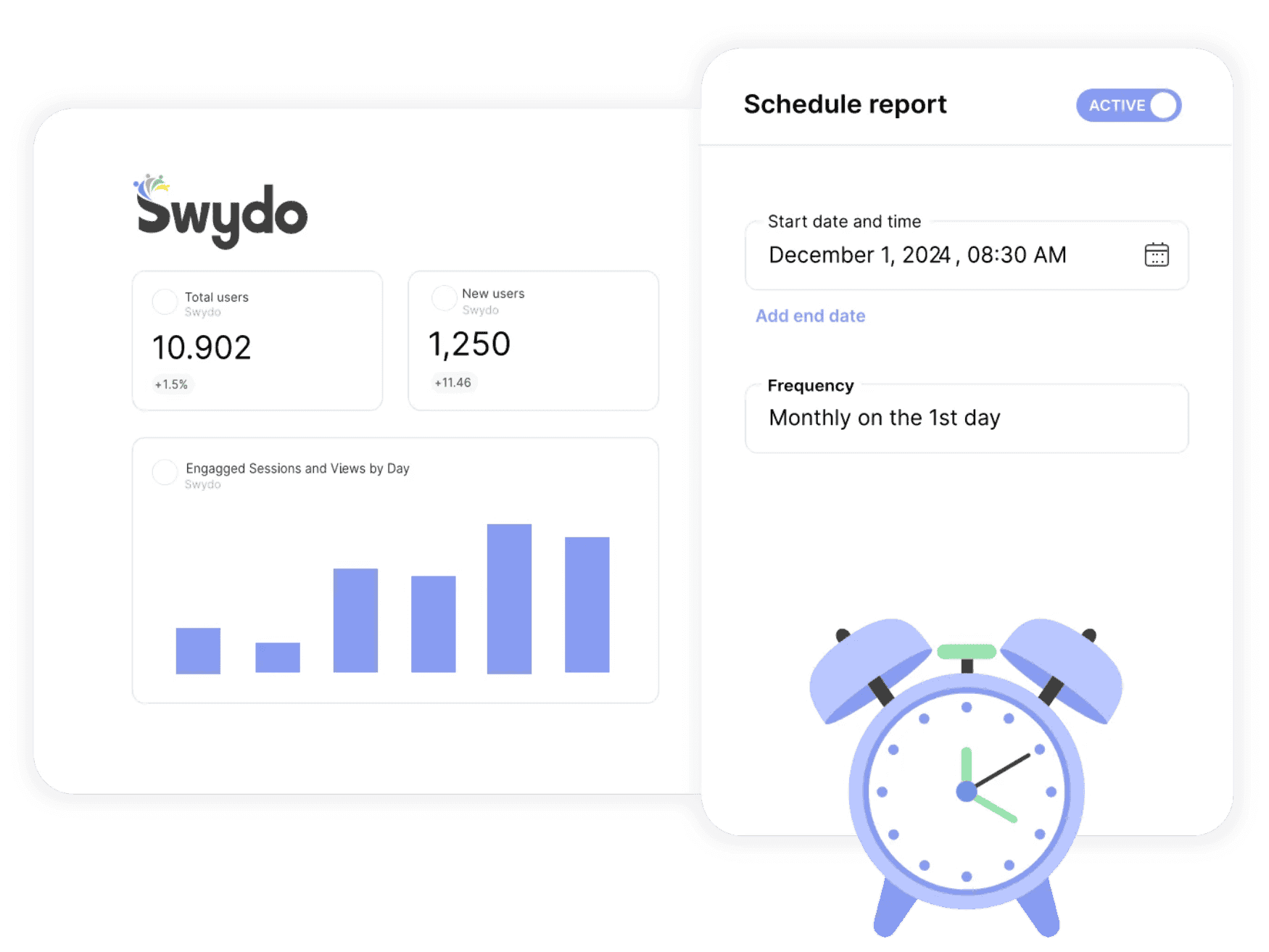
Send Excel Reports Automatically
Use a live Excel workbook in recurring Swydo reports and dashboards.
Update the spreadsheet manually or with Microsoft Power Automate, Make, or Zapier, then schedule report delivery around each client’s reporting cycle.
Share a dashboard or PDF without copying the workbook data into a new report or sending every update by hand.
Schedule recurring Excel reportsFix Excel Connection Issues
See when a connected Excel data source needs attention before it disrupts a recurring report.
Swydo’s Data Sources Health Check brings connection status into one view, so you can reauthorize an account after permissions change or access expires.
That makes connection problems easier to find and fix before the next client update is due.
Keep Excel data connected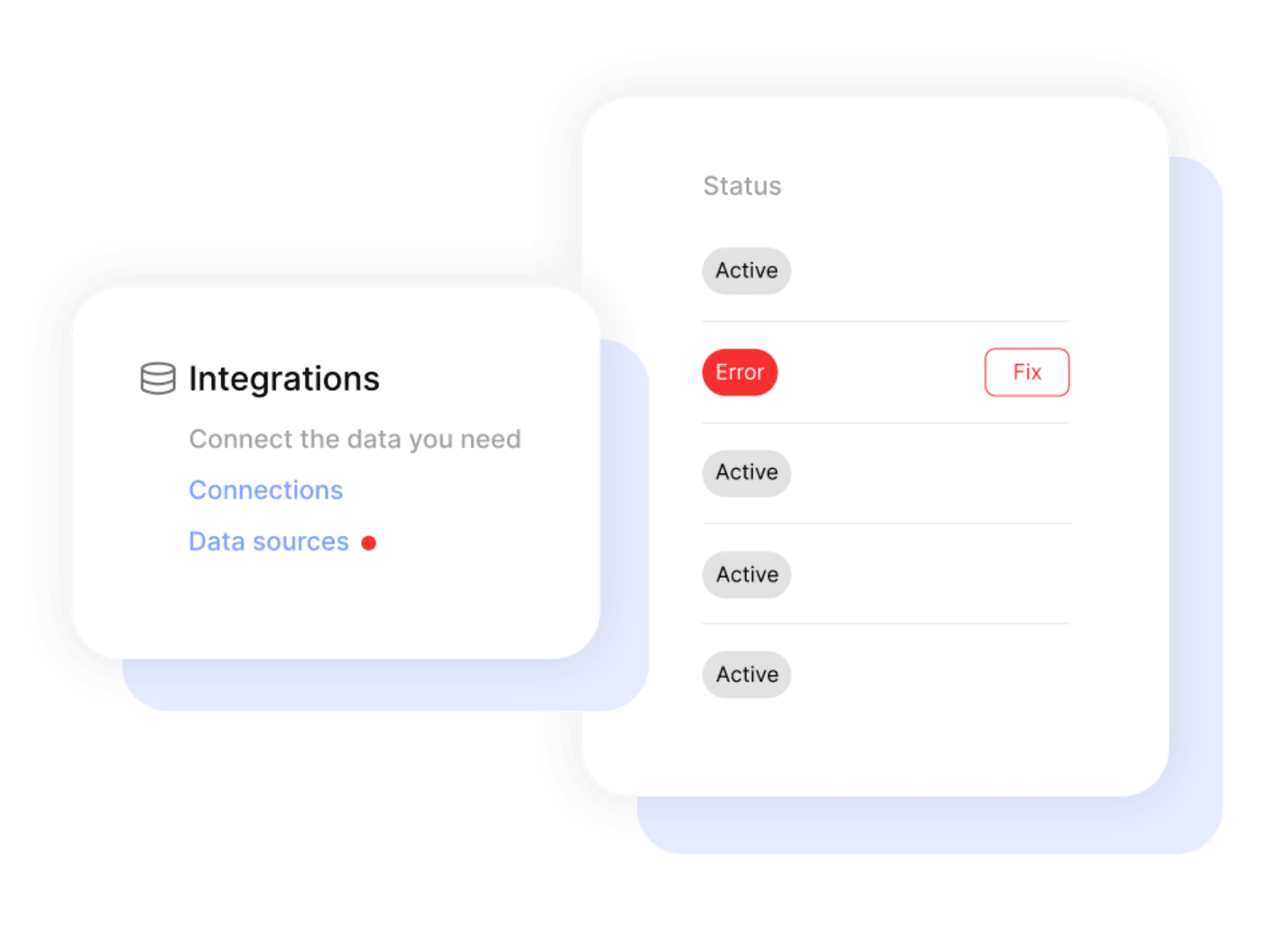

Get a single overview of top metrics for all your clients.

Get email alerts when results hit or miss targets.

Enjoy 99%+ report delivery with auto-resends.

Blend data from up to 5 ad platforms into one widget for a single, clear metric.

Blend data from up to 5 ad platforms into one widget for a single, clear metric.

Report-level and KPI status filters allow you to quickly identify issues and take action.

Bring all your PPC, SEO, social media and Google Analytics data together quickly and easily with hundreds of time-saving templates, predefined widgets, and KPIs.

Swydo enables you to build reports which reflect your brand by incorporating your logo, text styles, colors and personalized cover pages.

Swydo gives you the tools to dig deeper with monitoring boards, goals and target alerts, custom metrics, combined data sources, report filters, and more.

Once you’ve created a report, you can schedule and send that report automatically as frequently as needed - monthly, weekly, daily - whatever your clients need.

Customize reports to suit your clients’ needs. Build report templates and widgets from scratch. Provide executive summaries to help better understand the data.

Share your reports via PDF or use our online dashboard report option – whatever suits your clients or team best.
Easily Connect & Integrate Data in a Single Report
Yes. Add data from a third-party platform, CRM, or internal system to an Excel workbook, then connect that workbook to Swydo. This lets you report on data that does not have a native Swydo integration.
Yes. The integration requires a paid Microsoft Business account. Personal Microsoft accounts are not supported.
Follow four rules. Use the first row for unique field or column names, since these become your metric and dimension names. Do not use merged cells. Format number, currency, percentage, and date columns with the matching Excel format. Keep one dataset per sheet with no blank rows in the middle. If you change column names later, refresh the schema from the data source’s three-dot menu.
Yes. Excel data can appear in the same report or dashboard as data from integrations such as Google Ads, Facebook Ads, LinkedIn Ads, and Google Analytics 4.
Use the spreadsheet platform that fits your organization. Excel keeps Microsoft 365 teams in their existing workflow, while the Google Sheets integration provides comparable functionality for Google Workspace teams.
Yes. Keep a live Excel workbook updated manually or with tools such as Microsoft Power Automate, Make, or Zapier, then use the connected workbook in recurring Swydo reports and dashboards. You do not need to upload a new file each month.
Sign up for a 14-day free trial or start a subscription. Then:
No, Swydo is designed to be user-friendly and self-service, so no technical skills are required to get started quickly. Our setup guides walk you through every step. If you need assistance, our support team is here to help.
For a quick overview on how to set up your integration account, check out the integration tutorial on our help center.
Yes, Swydo implements industry-standard measures to protect your information. This includes secure data storage, encryption, and compliance with privacy regulations. Learn more here.
Yes, Swydo offers several filter options to help you refine your data and focus on the most relevant insights. Some of the key filter types include:
Yes, you can combine integration data with multiple integrations into one comprehensive report. This allows you to:
Perfect for multi-channel campaigns and seamless reporting.
Swydo actively monitors your data sources to keep everything running smoothly. If there’s a disruption, such as a password change or account update, you’ll receive an alert in the app, and a detailed email with easy steps to resolve the issue.
We accept credit cards (Visa, Mastercard & American Express) and PayPal.
Yes! Our onboarding ensures a seamless start with:
While Swydo is self-service, our support team is always available to help set up your first reports.
Client testimonials
Free for 14 days, no credit card required, cancel at any time